How to Lock Photos on iPhone in 2026 (Step-by-Step)
Face ID can gate the Hidden Album. Encryption is what actually locks the files.
You can lock photos on iPhone using Face ID through the built-in Hidden Album in iOS 18, but this only controls access to an album. It does not encrypt the files. For actual file-level locking, where the photo data becomes unreadable without a key, you need an app that applies AES-256 encryption to each file individually. This guide covers both methods, tests their real bypass resistance, and explains the difference between locking and hiding. For the hide-specific walkthrough, see How to Hide Photos on iPhone.
Quick Answer: How to Lock Photos on iPhone
If you searched for how to lock photos on iPhone, the fastest built-in method is Photos > select photos > Share > Hide, then verify Albums > Utilities > Hidden requires Face ID or your passcode. This locks access to the Hidden Album interface. It does not encrypt the photo files.
If you searched for how to lock photos app on iPhone, iOS does not provide a separate Photos app password for only selected pictures. You can add Screen Time friction or lock the Hidden Album, but anyone with the device passcode can still get in. Use an encrypted vault when the file itself needs to become unreadable outside the app.
Locking vs Hiding: The Distinction That Matters
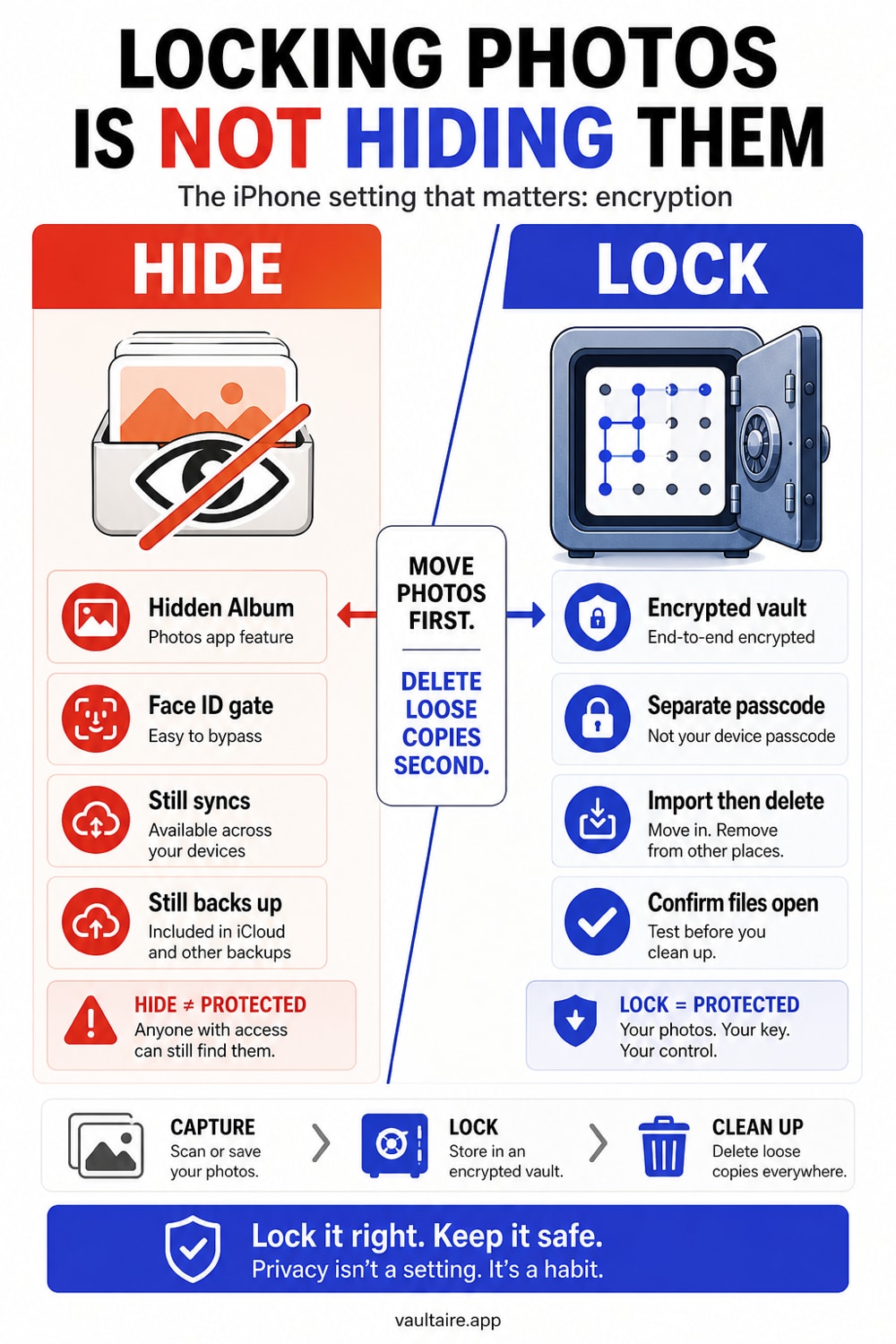
Locking and hiding are two different operations that protect against different threats. Hiding removes a photo from your visible library so someone scrolling your camera roll does not see it. Locking restricts access so someone who finds the photo cannot open it. Most iPhone users conflate the two, and most guides do too.
The iOS Hidden Album does both partially. It moves photos out of the main library and requires Face ID or Touch ID to view the album. But the lock is a UI gate, not file encryption. The photo data remains unencrypted on disk. A forensic tool, an iTunes backup extractor, or a jailbroken device can access hidden photos without ever triggering the Face ID prompt.
True locking means the file itself is transformed into unreadable ciphertext. Without the correct key, the data is noise. That requires encryption, not access control.
| Hiding | Locking (access control) | Locking (encryption) | |
|---|---|---|---|
| What it does | Removes photo from visible library | Requires authentication to view | Transforms file data into ciphertext |
| iOS example | Hidden Album | Face ID on Hidden Album | Not available natively |
| Third-party example | Any vault app | PIN-gated vault app | Vaultaire (AES-256-GCM) |
| Locked file content after app-container extraction | Readable | Readable | AES-GCM ciphertext without the master key |
| Survives jailbreak | No | No | Yes |
| Survives iCloud compromise | No | No | Yes (if using encrypted backup) |
If your threat model is a friend borrowing your phone, the Hidden Album is sufficient. If your concern involves device theft, legal compulsion, cloud breaches, or anyone with technical access, you need encryption.
How to Lock Photos Using the Hidden Album (iOS 18)
The Hidden Album is the fastest built-in method. It requires iOS 16 or later for the Face ID lock.
Step 1: Select the Photos to Lock
Open the Photos app. Tap Select in the top right. Tap each photo or video you want to lock. You can also tap and drag across multiple items to select them quickly.
Step 2: Move Photos to the Hidden Album
Tap the share icon in the bottom left. Scroll down and tap Hide. Confirm by tapping Hide [N] Photos. The selected items disappear from your main library, Recents, and other albums.
Step 3: Verify the Lock Is Active
Go to the Albums tab. Scroll to the bottom under Utilities. Tap Hidden. iOS prompts for Face ID, Touch ID, or your device passcode. If that prompt does not appear, go to Settings > Photos and confirm Use Face ID is toggled on.
Step 4: Confirm Screen Time Is Not a Backdoor
Open Settings > Screen Time > Content & Privacy Restrictions > Photos. If this is set to Don't Allow Changes, users cannot unhide photos. But anyone who knows your Screen Time passcode can change that setting. If the Screen Time passcode matches the device passcode, it adds no extra protection.
Why the Hidden Album Is Not a Real Lock
The Hidden Album satisfies casual privacy. It fails under scrutiny. Here is what testing reveals about its actual protection level.
Test 1: iTunes/Finder backup extraction. Connect the iPhone to a Mac. Create an unencrypted local backup using Finder. Use a free tool like iMazing or iExplorer to browse the backup contents. Hidden Album photos appear in the backup, fully readable, with original filenames and metadata.
Test 2: iCloud access. If iCloud Photos is enabled, hidden photos sync to iCloud. Anyone who logs into iCloud.com with your Apple Account credentials can view them. Apple holds the encryption keys for standard iCloud Photos unless you enable Advanced Data Protection.
Test 3: Screen Time bypass. A second person with your device passcode can navigate to Settings > Screen Time, disable Content & Privacy Restrictions, and access the Hidden Album. On family-shared devices where a parent has the Screen Time passcode, this is trivial.
Test 4: Siri and search. As of iOS 18, hidden photos no longer appear in Spotlight search results. This was a known bypass in earlier iOS versions. Verify this by searching for a hidden photo filename in Spotlight.
| Threat | Hidden Album Protected? | Notes |
|---|---|---|
| Casual browsing | Yes | Photo is not in the main library |
| Someone with your device passcode | Partial | Face ID prompts, but passcode fallback still works |
| Backup extraction (unencrypted) | No | Photos remain fully readable in backup output |
| iCloud access (standard) | No | Apple holds the decryption keys |
| iCloud access (ADP enabled) | Yes | End-to-end encrypted, but opt-in and off by default |
| Forensic tools | No | File data remains unencrypted on disk |
| Jailbroken device | No | Full file-system access defeats the UI lock |
How to Lock Photos with Encryption (Vaultaire)
Vaultaire applies AES-256-GCM authenticated encryption to every file at import. PBKDF2-HMAC-SHA512 combines a pattern drawn on a 5x5 grid with one device-wide Keychain salt to derive a vault key. That vault key authenticates the encrypted index and unwraps a random master key used for file content and metadata. Recovery information, including the pattern, is kept in an encrypted Keychain database rather than plaintext files or a Vaultaire account.
Step 1: Download and Open Vaultaire
Install Vaultaire from the App Store. Open the app. There is no account creation, no email, and no setup wizard. You see a 5x5 grid of dots.
Step 2: Draw a Pattern to Create a Vault
Draw a pattern connecting at least 6 dots with at least 1 direction change. Vaultaire serializes the path and feeds it to PBKDF2-HMAC-SHA512 with a device-wide salt. The pattern uses muscle memory, so a longer path can remain easier to repeat than an arbitrary character string.
Step 3: Import Photos
Tap the import button inside the vault. Select photos from your camera roll or use the built-in camera to capture directly into the vault. Photos captured with the in-app camera never touch the photo library in unencrypted form.
Step 4: Delete Originals from the Camera Roll
After the import, Vaultaire offers to delete the originals from the Photos app. Deleted photos go to Recently Deleted, so empty it too. Until the originals are deleted, unencrypted copies still exist on the device.
Step 5: Verify the Lock
Close Vaultaire. The app drops its active vault and master-key state when it locks. Reopen it and draw your pattern again so the app can authenticate the encrypted index and unwrap the existing master key. Draw another configured pattern to open its separate vault; an unconfigured pattern shows an empty state. Swift and iOS do not provide a provable wipe of every transient memory copy.
Pattern Encryption vs PIN-on-Launch: Why the Difference Is Fundamental
Most photo vault apps on the App Store use a PIN or password as a gate. You enter the code, the app opens, and you see your photos. The code is an access-control mechanism. Behind the gate, the photos typically sit in a renamed folder with no encryption applied. A forensic examiner with file-system access can read them without knowing the PIN.
Pattern encryption in Vaultaire uses the pattern as key-derivation input rather than only as a UI gate. PBKDF2-HMAC-SHA512 combines it with a device-wide salt for 600,000 iterations to derive a 256-bit vault key. That vault key encrypts the index and wraps a separate random 256-bit master key, which protects file content, headers, metadata, and thumbnails with AES-256-GCM.
| PIN-on-launch (typical vault app) | Pattern encryption (Vaultaire) | |
|---|---|---|
| What the code does | Unlocks the app UI | Derives a vault key via PBKDF2 and unwraps a random master key |
| File state on disk | Unencrypted and readable by forensic tools | AES-256-GCM ciphertext that looks like random noise without the key |
| Wrong code behavior | Shows an "Incorrect PIN" error | A configured pattern opens its vault; an unconfigured pattern shows an empty state |
| Offline guessing cost | Often low | Each guess requires PBKDF2 plus authenticated index decryption; strength still depends on pattern entropy |
| Direct file reading | Possible when files are plaintext | File contents remain AES-GCM ciphertext without the random master key |
| Pattern/PIN stored on device | Usually yes | Recovery copy inside an encrypted Keychain database |
This is not a marginal improvement. It is the difference between a lock on a door and a wall where the door used to be.
Other Methods to Lock Photos on iPhone
Notes App Lock
You can embed photos in a locked note. Open Notes, create a new note, add photos via the camera icon, then tap the share icon and select Lock Note. The note is encrypted with your device passcode or a separate password. This provides real encryption, but Notes is not a good photo-management tool.
Shortcuts Automation
Some guides suggest using the Shortcuts app to create an automation that moves photos to a locked folder. This is fragile. Shortcuts automations can be viewed and edited by anyone with device access, and the "locked folder" still has the same limitations as the Hidden Album.
Third-Party Vault Apps Without Encryption
Apps like Keepsafe, Private Photo Vault, and Calculator# provide PIN-gated access to a hidden photo gallery. In our tested roundup of vault apps for iPhone, the repeated pattern is the same: the PIN prevents casual access through the app interface, but readable files on disk make backup extraction or forensic bypass straightforward.
Tips and Common Mistakes
- Do not rely on Screen Time as a lock. Screen Time restrictions can be reset by anyone with the device passcode.
- Delete originals after importing to a vault. The most common mistake is importing photos into a secure app but leaving the unencrypted originals in the camera roll.
- Empty the Recently Deleted album. Deleted photos persist for 30 days, which leaves a long recovery window.
- Enable encrypted iPhone backups. In Finder on Mac or iTunes on Windows, select Encrypt local backup.
- Check your iCloud configuration. If iCloud Photos is enabled, consider Advanced Data Protection or turning iCloud Photos off for sensitive content.
- Use the in-app camera when available. Vaultaire can capture directly into the encrypted vault so the photo never lands in the camera roll first.
Frequently Asked Questions
Can someone unlock my Hidden Album without Face ID?
Yes. Face ID is the primary authentication, but the device passcode is always a fallback. Anyone with your passcode can access the Hidden Album. On devices without Face ID or Touch ID, the passcode is the only barrier.
Does hiding a photo on iPhone encrypt it?
No. The Hidden Album moves photos to a separate album and requires authentication to view it, but the photo files remain unencrypted on disk. They are still readable through backup extraction tools, iCloud access without Advanced Data Protection, and forensic software.
What is the most secure way to lock photos on iPhone?
A stronger method is authenticated file encryption backed by a documented key hierarchy and recovery model. Vaultaire uses AES-256-GCM under a random master key, which a PBKDF2-derived vault key wraps. Recovery information is stored in an encrypted Keychain database rather than plaintext files.
Can police access hidden photos on iPhone?
Law enforcement with a valid court order can compel Apple to provide iCloud data unless Advanced Data Protection is enabled. With physical device access, forensic tools can extract hidden photos because the files are not encrypted.
Is the Notes app lock secure for photos?
The Notes lock uses strong encryption, but Notes is not designed for browsing, organizing, and importing large photo libraries. It works for a few sensitive items. It does not scale well.
How many photos can Vaultaire lock?
The free tier supports up to 3 vaults holding 100 photos and 10 videos in total. Paid tiers remove those content limits, but every tier uses the same AES-256-GCM file encryption and documented key hierarchy.
Bottom Line
The iPhone Hidden Album is a visibility toggle with a Face ID gate. It prevents casual discovery. It does not prevent extraction, forensic analysis, or cloud-based access. If your threat model goes beyond someone swiping through your camera roll, you need file-level encryption.
Vaultaire encrypts every imported photo with AES-256-GCM under a random master key. A vault key derived from the pattern and a device-wide salt authenticates the encrypted index and wraps that master key. Recovery information is stored in an encrypted Keychain database. Locking drops active key state, although Swift and iOS do not provide a provable wipe of every transient memory copy.
Related reading: How to Hide Photos on iPhone | How to Create a Secret Folder on iPhone | Pattern Encryption | Security Architecture