How to Create a Secret Folder on iPhone in 2026
Learn 3 methods to create a secret folder on iPhone: Hidden Album, iOS Shortcuts automation, and AES-256-GCM encrypted vaults.
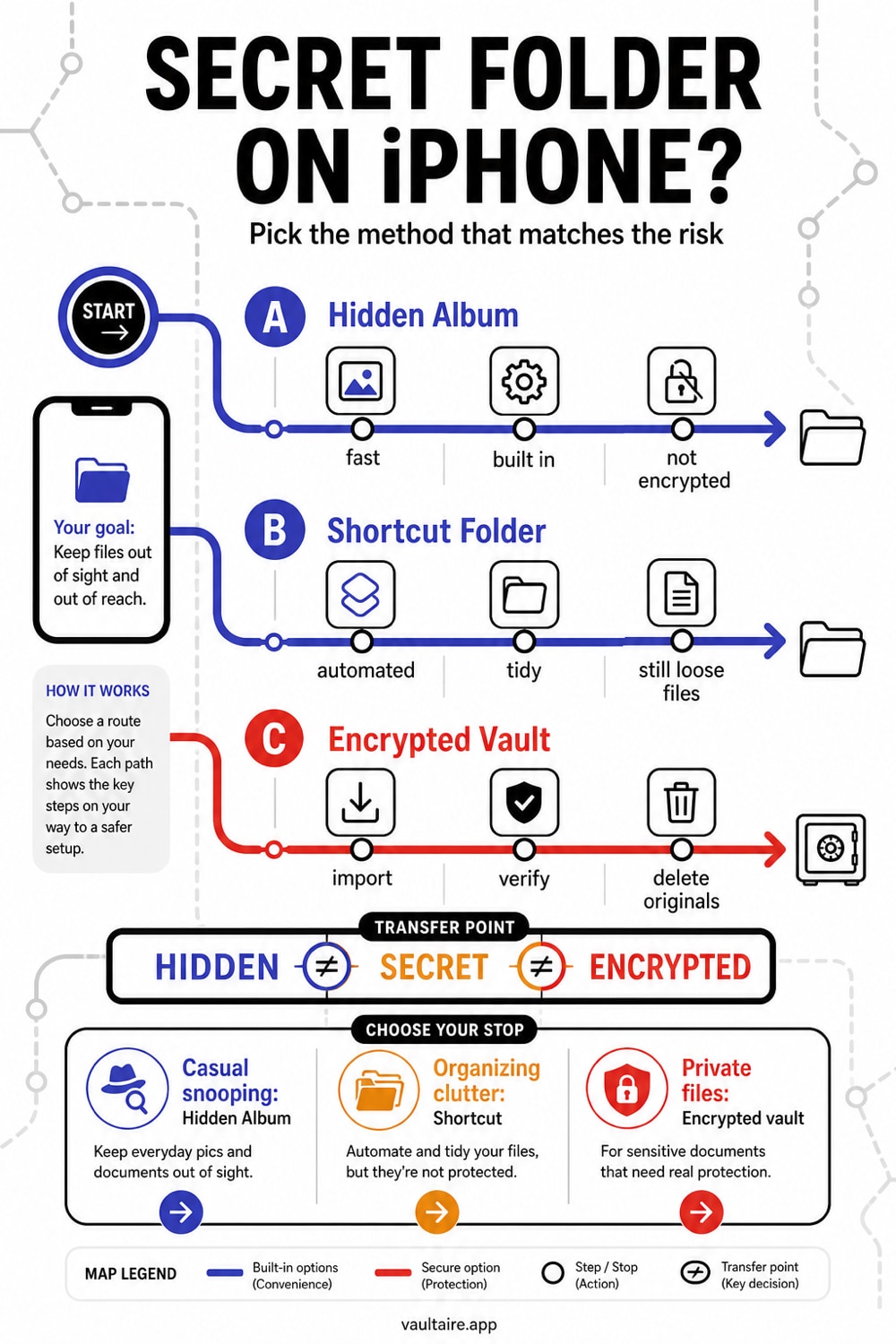
You can create a secret folder on iPhone using three methods: the built-in Hidden Album (iOS 16+, locked behind Face ID), an iOS Shortcuts automation that moves files to an obfuscated location, or an encrypted vault app like Vaultaire that protects files with AES-256-GCM under a random master key. This guide covers all three, with the tradeoffs that matter.
"Secret" vs "Hidden" vs "Encrypted": What Each Actually Means
These three terms describe different levels of protection, but most guides use them interchangeably. They are not the same thing.
| Term | What It Means | iPhone Example | Protection Level |
|---|---|---|---|
| Hidden | Moved out of the default view. Still exists in the same location on disk. | iOS Hidden Album | Low. Anyone who knows where to look finds it in seconds. |
| Secret | Concealed so its existence is not obvious. May or may not be encrypted. | A folder renamed to look like a system file | Medium. Obscurity provides no guarantee. |
| Encrypted | Transformed into unreadable ciphertext using a cryptographic key. Cannot be accessed without the key. | AES-256-GCM vault (e.g., Vaultaire) | High. Decryption requires the correct key regardless of physical access. |
The iOS Hidden Album is hidden but not secret. It appears under a clearly labeled "Hidden" section in Photos. It is not encrypted. The photos are stored in their original format on disk and are readable through a Mac connection, an iTunes backup, or forensic extraction tools.
A genuinely secret folder requires that (a) the folder's existence is not discoverable and (b) its contents are protected by something stronger than visibility settings.
Method 1: Use the Built-in Hidden Album (iOS 16+)
The Hidden Album in iOS 16 and later requires Face ID or Touch ID to view, which is an improvement over earlier versions where anyone with the phone could open it. Here is how to use it.
Step 1: Select the Photos You Want to Hide
Open the Photos app. Tap Select in the upper right. Tap each photo or video you want to move. Selected items show a blue checkmark.
Step 2: Tap the Share Button and Choose "Hide"
With your photos selected, tap the share icon (square with upward arrow) in the bottom left. Scroll down in the share sheet and tap Hide. Confirm by tapping Hide [N] Photos.
Step 3: Verify the Photos Moved to the Hidden Album
Open the Albums tab. Scroll to the bottom under Utilities. Tap Hidden. Authenticate with Face ID or Touch ID. Your photos should appear here.
Step 4: Disable Hidden Album Visibility (Optional)
Go to Settings > Photos and toggle off Show Hidden Album. This removes the Hidden album from the Albums tab entirely. The photos still exist on the device. This just hides the album from view. Anyone who knows this setting exists can toggle it back on in seconds.
What the Hidden Album Does Not Do
- It does not encrypt photos. Files remain in their original JPEG/HEIC format on disk.
- It does not protect against iTunes/Finder backups. Hidden photos appear in unencrypted backups.
- It does not resist forensic tools. Cellebrite, GrayKey, and similar tools read Hidden Album contents directly.
- It does not hide the fact that you have hidden photos. The "Hidden" label is visible in Utilities.
Method 2: Build an iOS Shortcut That Moves Photos to an Obfuscated Location
This method uses the Shortcuts app to move photos into the Files app under a folder name that does not draw attention. Almost no guide covers this because it requires familiarity with iOS Shortcuts. It provides obscurity, not encryption.
Step 1: Create the Destination Folder
Open the Files app. Navigate to On My iPhone. Tap the three-dot menu and select New Folder. Name it something inconspicuous – com.apple.system.resources or .cache_thumbnails are examples that look like system files. iOS does not prevent you from using dot-prefixed names.
Step 2: Create the Shortcut
Open the Shortcuts app. Tap the + button to create a new shortcut. Add these actions in order:
- Select Photos – set to "Select Multiple"
- Save File – destination: the folder you created in Step 1. Enable "Ask Where to Save" if you want to choose each time, or hardcode the path.
Name the shortcut something neutral like "Organize" or "Cleanup."
Step 3: Run the Shortcut and Delete Originals
Run the shortcut from the Shortcuts app or add it to your Home Screen. Select the photos. After they copy to the Files folder, go back to Photos and delete the originals from the Recently Deleted album (they persist there for 30 days).
Limitations of the Shortcut Method
- No encryption. Files are stored in plaintext in the Files app.
- Discoverable. Anyone who browses On My iPhone in the Files app can find the folder.
- No authentication. The folder has no password or biometric lock.
- Backup exposure. Files in On My iPhone are included in iCloud and iTunes backups.
The Shortcut method is better than nothing for casual privacy. It is not suitable for protecting files from someone with physical access to your device for more than a few minutes.
Method 3: Use an Encrypted Vault App
An encrypted vault app stores files inside authenticated-encryption containers. If an examiner copies only the encrypted files and does not obtain a key or usable credential, AES-256-GCM prevents direct recovery of their contents. That is stronger than hiding plaintext in a folder, but it does not guarantee protection from a compromised unlocked device, offline credential guessing, metadata analysis, backups that contain another copy, or flaws in the app's implementation.
Vaultaire uses a pattern drawn on a 5x5 grid of 25 dots as key-derivation input. PBKDF2-HMAC-SHA512 combines the pattern with a device-wide salt for 600,000 iterations to derive a 256-bit vault key. That key authenticates the encrypted index and unwraps a separate random master key used for AES-256-GCM file and metadata encryption. Recovery information is stored in an encrypted Keychain database, not in plaintext files.
How It Works
- Draw a pattern on the 5x5 grid. Each configured pattern opens its own vault.
- Import photos, videos, or documents using the share sheet or built-in camera.
- Files are encrypted during import. Share-sheet imports and in-app video pass through short-lived temporary files that the app deletes after encryption.
- Close the app. Vaultaire drops its active vault and master-key state and requires the pattern again when you return.
What Makes This Different
- No visible vault list. The normal interface does not enumerate vaults. Pages from every vault share one folder under random names, so file names do not show which vault a file belongs to. An examiner with app-container access can still estimate how many vaults you have, because the number of storage arenas bounds it.
- Wrong pattern shows an empty state. An incorrect pattern does not produce a visible error. Behind that interface, AES-GCM authentication still succeeds or fails, so a copied index provides an offline verification test for candidate keys.
- Duress mode (Pro). One vault can be designated as a duress trigger. Drawing that pattern opens it normally and deletes the indexes, pages, and storage arenas of the other vaults on this device, without an overwrite. It also wipes the recovery data. The device salt and iCloud backup data stay, and peer copies, operating-system artifacts, and forensic traces are not guaranteed to disappear. Completion time depends on the local work performed.
See the full security architecture and pattern encryption explanation.
Switching from Samsung Secure Folder?
If you recently moved from a Samsung Galaxy to iPhone, you are probably looking for the equivalent of Samsung Secure Folder. It does not exist as a native feature on iOS. Here is how the options compare.
| Feature | Samsung Secure Folder | iOS Hidden Album | Vaultaire |
|---|---|---|---|
| Encryption standard | AES-256 (Knox) | None (access control only) | AES-256-GCM |
| Requires account | Yes (Samsung account) | No | No |
| Separate app space | Yes (cloned apps) | No | No (file vault only) |
| Password/biometric lock | Yes | Face ID/Touch ID only | Pattern-derived vault key wrapping a random master key |
| Files encrypted on disk | Yes | No | Yes (each file individually) |
| Recovery after factory reset | Samsung recovery path | iCloud Photos if synced | Custom phrase plus matching encrypted iCloud backup records |
| Locked storage boundary | Knox-dependent | Photos access controls | Ciphertext without required vault and master keys; arena count still bounds the vault count |
| Pattern-separated interface | No (Secure Folder visible in app list) | No (Hidden album labeled) | Yes in the interface; vault count can still be estimated |
Samsung Secure Folder's main advantage is its separate app space: you can run a second copy of apps like WhatsApp inside the Secure Folder. iOS has no equivalent. For file storage and photo protection specifically, Vaultaire adds a documented pattern-to-vault-key hierarchy and a locked interface with no cross-vault list. Its current local format still lets filesystem inspection estimate how many vaults you have.
If you need to migrate files from Samsung Secure Folder before switching phones: open Secure Folder on your Galaxy, move files out to regular storage, transfer to iPhone via Apple's Move to iOS app or direct file transfer, then import into Vaultaire.
For the full switch, step by step, read Samsung Secure Folder vs iPhone: what to know before you switch.
Comparison: All Three Methods Side by Side
| Criteria | Hidden Album | Shortcut Method | Encrypted Vault (Vaultaire) |
|---|---|---|---|
| Setup time | 30 seconds | 5-10 minutes | 2 minutes |
| Encryption | None | None | AES-256-GCM |
| Biometric lock | Face ID/Touch ID | None | None (pattern only) |
| Protects file contents in a copied container | No | No | Yes, without the required master key |
| Hides local vault count | No | No | No. The arena count bounds the vault count. |
| Hides existence of files | No ("Hidden" album visible) | Partially (folder with obscure name) | Yes in the normal interface |
| Recovery if phone is lost | iCloud (unencrypted) | iCloud (unencrypted) | Encrypted iCloud backup or recovery phrase |
| Free | Yes | Yes | Yes (up to 3 vaults, 100 photos and 10 videos total) |
| Works with videos | Yes | Yes | Yes |
| Works with documents | No (Photos only) | Yes | Yes (any file type) |
Tips and Common Mistakes
Do not rely on the Hidden Album for sensitive content. It was designed for organizing your photo library, not for security. Apple's own documentation calls it a visibility feature, not a protection feature.
Delete originals from Recently Deleted. When you move photos to any secret location, the originals sit in the Recently Deleted album for 30 days. If you skip this step, the photos remain accessible.
Do not use a calculator-style vault app. Apps that disguise themselves as calculators often use access-control PINs without actual encryption. The disguise provides obscurity but no cryptographic protection. A forensic tool reads the stored files directly. Read more in our calculator vault apps guide and our best vault apps comparison.
Check whether your vault app actually encrypts. If a vault app has a "forgot password" flow that works without a recovery phrase, the files are probably not encrypted. The server or app can regenerate access, which means the encryption key is stored somewhere retrievable.
Consider your threat model. If you want to keep photos from a nosy friend, the Hidden Album may be enough. Authenticated encryption can protect locked file contents after app-container extraction, but it does not hide Vaultaire's approximate local vault count or guarantee safety on a compromised, unlocked device.
Back up your vault separately. Encrypted vault apps store data independently from iCloud Photos. If you lose your phone and only have an iCloud Photos backup, your vault contents are not included unless the vault app has its own encrypted backup system. Vaultaire offers encrypted iCloud backup which is on by default and uploads backup data Apple cannot read.
Frequently Asked Questions
Can someone find my secret folder on iPhone?
It depends on the method. The iOS Hidden Album is discoverable through Photos settings, and a folder in Files can be found by browsing. Vaultaire keeps file names and content inside authenticated encrypted records and shows no vault list in the normal interface. Its storage files do not show which vault a file belongs to, but full filesystem access can reveal that encrypted vaults exist and lets an examiner estimate how many there are.
Is the iPhone Hidden Album actually encrypted?
No. The Hidden Album uses access control (Face ID/Touch ID) to restrict viewing within the Photos app. The underlying files remain in their original format on disk. They are accessible through Mac file browsing, iTunes backups, and forensic extraction tools. For actual encryption, you need a vault app that uses AES-256 or equivalent.
What is the most secure way to hide photos on iPhone?
A strong method uses authenticated file encryption, a documented separation between credential-derived and random content keys, and a recovery model that gives the provider no plaintext decryption key. Also check what metadata remains visible and what happens on an unlocked or compromised device. See our full guide to hiding photos on iPhone for step-by-step instructions.
Does Samsung Secure Folder work on iPhone?
No. Samsung Secure Folder is exclusive to Samsung Galaxy devices and requires a Samsung account. There is no native iOS equivalent. The closest Apple offers is the Hidden Album and locked or hidden apps. Third-party vault apps like Vaultaire provide separate encrypted file storage and pattern-separated access. Vaultaire's current storage layout does not provide forensic vault-count deniability.
Can police access my Hidden Album?
An unlocked device can expose the Hidden Album through the Photos access model. Vaultaire uses a separate pattern credential, but recovery fields are stored inside an AES-GCM-encrypted Keychain database. Legal treatment of biometrics and memorized credentials varies by jurisdiction and is separate from the cryptographic design.
How many photos can I put in a secret folder?
The Hidden Album has no file limit; it is bounded only by device storage. The iOS Shortcut method is similarly unlimited. Vaultaire's free tier allows up to 3 vaults holding 100 photos and 10 videos in total. Paid tiers remove those content limits; current prices appear in the App Store.
Bottom Line
A secret folder on iPhone ranges from moved out of sight to protected by authenticated encryption. The Hidden Album hides photos from casual viewing. An iOS Shortcut adds obscurity. An encrypted vault app like Vaultaire adds AES-256-GCM file protection and pattern-separated access, while its current storage layout leaves encrypted storage observable and the local vault count open to estimate. Pick the method that matches your threat model, and remember that "hidden" and "encrypted" are not the same thing.