How to Hide Photos in Google Photos (2026)
Use Google Photos Locked Folder to hide photos from your library.
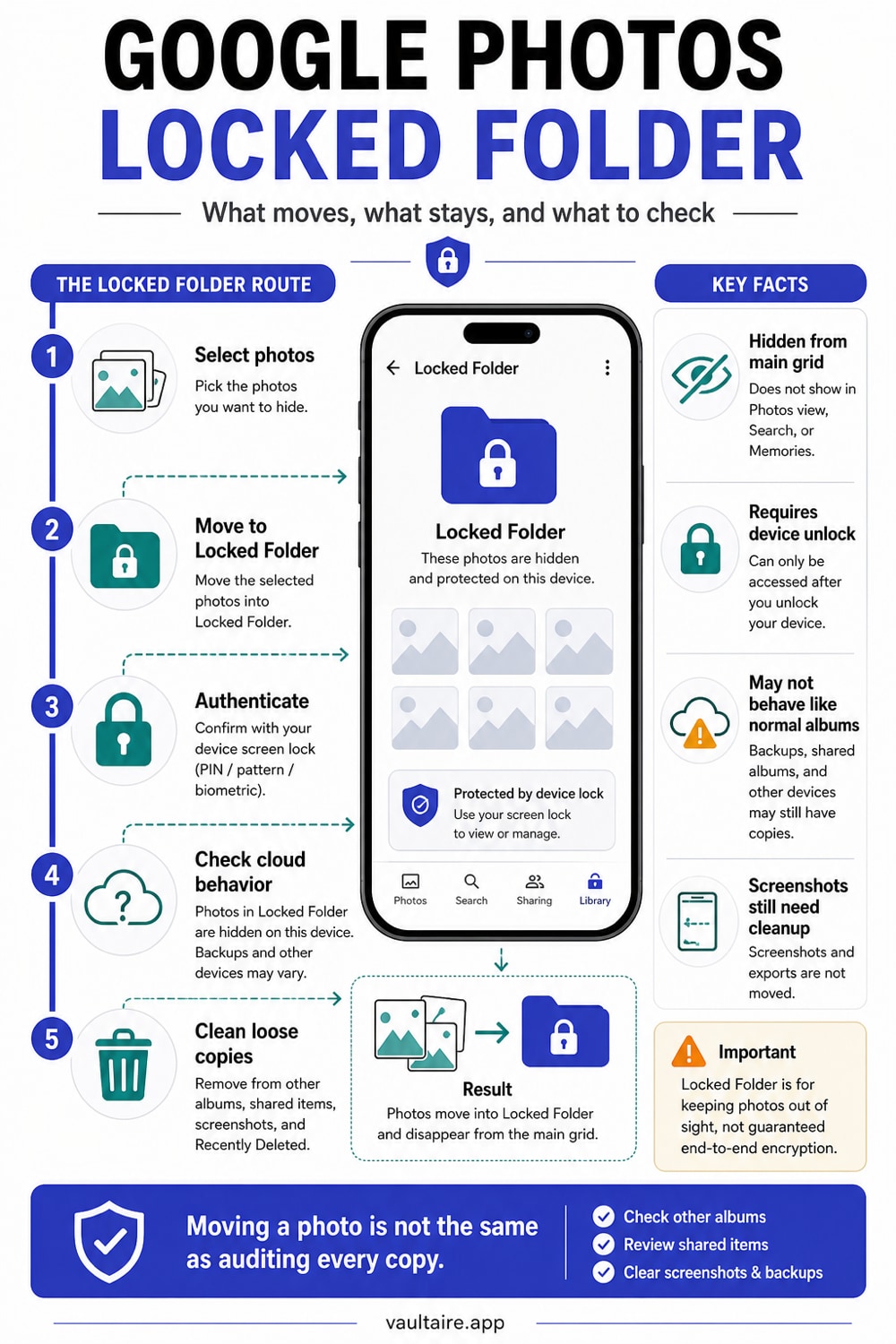
Google Photos has a Locked Folder feature that hides photos behind your device's screen lock (PIN, fingerprint, or face unlock). Photos in the Locked Folder do not appear in your main library, shared albums, or Google Photos memories. When backup is enabled, Google stores them under its service protection model and retains provider-side access described in its privacy policy. A client-side encrypted vault such as Vaultaire instead keeps plaintext vault keys away from the storage provider, while device, recovery, metadata, and backup paths still matter.
This guide walks through the Locked Folder setup, explains its limitations, and covers stronger alternatives.
What Is the Google Photos Locked Folder?
The Locked Folder is a password-protected space within Google Photos where you can move photos and videos out of your main library. It was introduced in June 2021 on Pixel devices and expanded to all Android and iOS devices.
Photos in the Locked Folder are hidden from the main photo grid, search results, albums, and Google's Memories feature. They do not appear in other apps that access your photo library. On-device, they are gated behind your screen lock authentication (fingerprint, face, PIN, or password).
The distinction that matters: the Locked Folder hides photos from the Google Photos interface and from casual access. It does not encrypt them with a key that only you hold. Google can still access the underlying data on its servers.
How to Move Photos to the Locked Folder: Step-by-Step
Step 1: Open Google Photos
Launch the Google Photos app on your Android phone or iPhone.
Step 2: Select Photos to Hide
Tap and hold on a photo to enter selection mode. Tap additional photos to select multiple.
Step 3: Move to Locked Folder
Tap the three-dot menu (top right) and select "Move to Locked Folder." On some devices, this appears under "Move to" options. Confirm when prompted.
Step 4: Authenticate
You will be asked to verify with your screen lock (fingerprint, face, PIN). This confirms you are the device owner.
Step 5: Access the Locked Folder Later
Go to Library > Utilities > Locked Folder. Authenticate again to view the contents. To move a photo back, open it from the Locked Folder and select "Move" to return it to your library.
How to Save Directly to the Locked Folder
On Pixel and supported Android devices, you can capture photos directly into the Locked Folder from the camera app.
Step 1: Open Your Camera App
Launch the default camera application.
Step 2: Select Locked Folder Mode
In the camera settings or mode selector, look for "Locked Folder" or a lock icon. Tap it to enable.
Step 3: Take Photos
Photos captured in this mode go directly to the Locked Folder without passing through the main photo library.
This feature is not available on all devices and is not currently supported in the iOS Google Photos app.
What the Locked Folder Does Not Protect Against
The Locked Folder is a usability feature, not a security feature. Understanding its limitations prevents false confidence.
Google Can Access Locked Folder Contents
Google's privacy policy grants the company the right to process data stored on its services. Photos in the Locked Folder are stored on Google's servers when Locked Folder backup is enabled. Google can comply with law enforcement requests, court orders, and government subpoenas by providing data it can access. The lock applies to the interface, not to a user-held encryption system.
Google does not document the Locked Folder as end-to-end encrypted or controlled by a separate user-held key. The protection model is your Google account plus your device screen lock, not a secret that only you possess.
Someone With Your Screen Lock Can Access It
The Locked Folder uses your device's screen lock as the gate. If someone knows your PIN, has a registered fingerprint, or can use your face while you are asleep, they can open the Locked Folder. There is no separate password or recovery secret.
No Protection on Shared or Lost Devices
If you share your device PIN with a partner, child, or anyone else, the Locked Folder is accessible to them. If your phone is stolen while unlocked, the Locked Folder is accessible.
Cloud Backup Limitations
When cloud backup is enabled for the Locked Folder, the photos sync to Google's servers. This protects against device loss but exposes the photos to the limitations above (provider-side access under the account security model and legal requests directed at Google). When cloud backup is disabled, Locked Folder contents exist only on the device and are lost if the device is lost or factory reset.
| Feature | Google Photos Locked Folder | Encrypted Vault App |
|---|---|---|
| Hidden from main library | Yes | Yes |
| Password-protected | Screen lock only | Separate encryption key |
| Encrypted on device | At rest (device encryption) | Per-file AES-256-GCM |
| Encrypted in cloud | Google manages service keys | Separate client-side backup key when Vaultaire backup is enabled |
| Provider plaintext access | Google retains service-side access | Wraxle receives no readable vault files or plaintext backup key; Apple sees CloudKit metadata |
| Accessible with screen lock | Yes | No (separate key) |
| Law enforcement access via provider | Yes | Ciphertext and retained metadata may be available; no provider-held content key |
| Survives device loss | Only if cloud backup is on | Only if encrypted backup exists |
A Stronger Alternative: End-to-End Encrypted Vault
For photos that should not be readable through a storage provider's own keys, use a vault that encrypts content on the client and documents its recovery and metadata model. This narrows provider access; it does not guarantee protection from device compromise, credential attacks, legal demands for metadata or ciphertext, or another available copy.
Vaultaire encrypts each photo with AES-256-GCM under a random master key. PBKDF2-HMAC-SHA512 derives a local vault key from a 5x5 pattern and device-wide salt, and that vault key wraps the master key. The iCloud backup, on by default, uses a separate pattern-derived backup key and uploads client-side encrypted records. Apple can observe CloudKit service metadata, but Vaultaire does not send it readable file content or plaintext decryption keys.
The tradeoff is key custody. If every usable pattern, recovery phrase, local recovery record, unlocked device, and other key-bearing copy is lost, Wraxle has no account-reset key that can restore the vault.
Tips and Common Mistakes
- Do not assume the Locked Folder is encrypted end-to-end. Google uses server-side encryption where Google holds the keys. This protects against external breaches but not against Google itself or legal compulsion.
- Enable cloud backup for the Locked Folder if device loss concerns you. Without it, a factory reset destroys those photos permanently.
- Set a strong screen lock. The Locked Folder's security ceiling is your screen lock. A 4-digit PIN has 10,000 combinations. A 6-digit PIN has 1,000,000. An alphanumeric password is stronger.
- Remember that the Locked Folder does not appear in Google Photos backups by default. If you want cloud backup of Locked Folder contents, you must enable it explicitly.
- For photos that are truly sensitive, move them to an encrypted vault app instead of the Locked Folder. The Locked Folder is good for keeping embarrassing photos out of Memories. It is not designed for security.
- Use Download, not save-image, when you pull a photo out of the web app. Right-clicking a photo in the browser saves the WebP copy Google generated for display, not your file. If you already have WebP copies you cannot open, the free WebP to PNG converter converts them in the browser and keeps transparency, without uploading anything.
Frequently Asked Questions
Can Google employees see my Locked Folder photos?
Google's privacy policy does not grant individual employees browsing access to your photos. However, Google's systems process your data, and the company can comply with legal requests. End-to-end encryption (which the Locked Folder does not use) would make this technically impossible.
Does the Locked Folder work on iPhone?
Yes. Google Photos for iOS supports the Locked Folder. The functionality is the same: photos are hidden from the main library and gated behind your device's screen lock. The same limitations apply – Google holds the encryption keys for cloud-stored content.
Are Locked Folder photos still backed up?
Only if you explicitly enable cloud backup for the Locked Folder. Without it, Locked Folder contents are device-only and lost on factory reset or device loss.
What happens to Locked Folder photos if I uninstall Google Photos?
If cloud backup is enabled, the photos remain on Google's servers and reappear when you reinstall and sign in. If cloud backup is not enabled, the photos are deleted with the app.
Is the Google Photos Locked Folder better than Apple's Hidden Album?
They solve similar problems differently. Apple's Hidden Album requires Face ID/Touch ID (since iOS 16) and syncs via iCloud Photos. Google's Locked Folder uses your screen lock and syncs via Google's cloud. Neither provides end-to-end encryption by default. Apple's Advanced Data Protection adds end-to-end encryption to iCloud Photos, which is a stronger option than Google currently offers for the Locked Folder.
How risky is it to keep nude photos in Google Photos or iCloud?
Riskier than most people assume. Both services keep readable copies on company servers, scan uploads to some degree, and can be reached by an account breach, a subpoena, or anyone who gets into your account. Neither encrypts your photos end to end by default. For images you would never want exposed, keep them in an encrypted vault on the device rather than a cloud gallery.
Bottom Line
The Google Photos Locked Folder keeps photos out of your main library and behind your screen lock. It is useful for keeping certain photos out of Memories and away from people briefly using your phone. It is not designed for serious privacy. Google holds the encryption keys, the screen lock is the only barrier, and legal requests can compel access.
For photos that need a content key outside the cloud provider's custody, use an encrypted vault app with documented client-side encryption, recovery, and metadata behavior. This protects copied ciphertext without turning an unlocked phone, weak credential, system backup, or flawed client into a trusted environment.