Can Family Sharing See Your iPhone Photos?
Learn what Family Sharing does not share, what shared Apple IDs expose, and how to check Shared Photo Library safely.
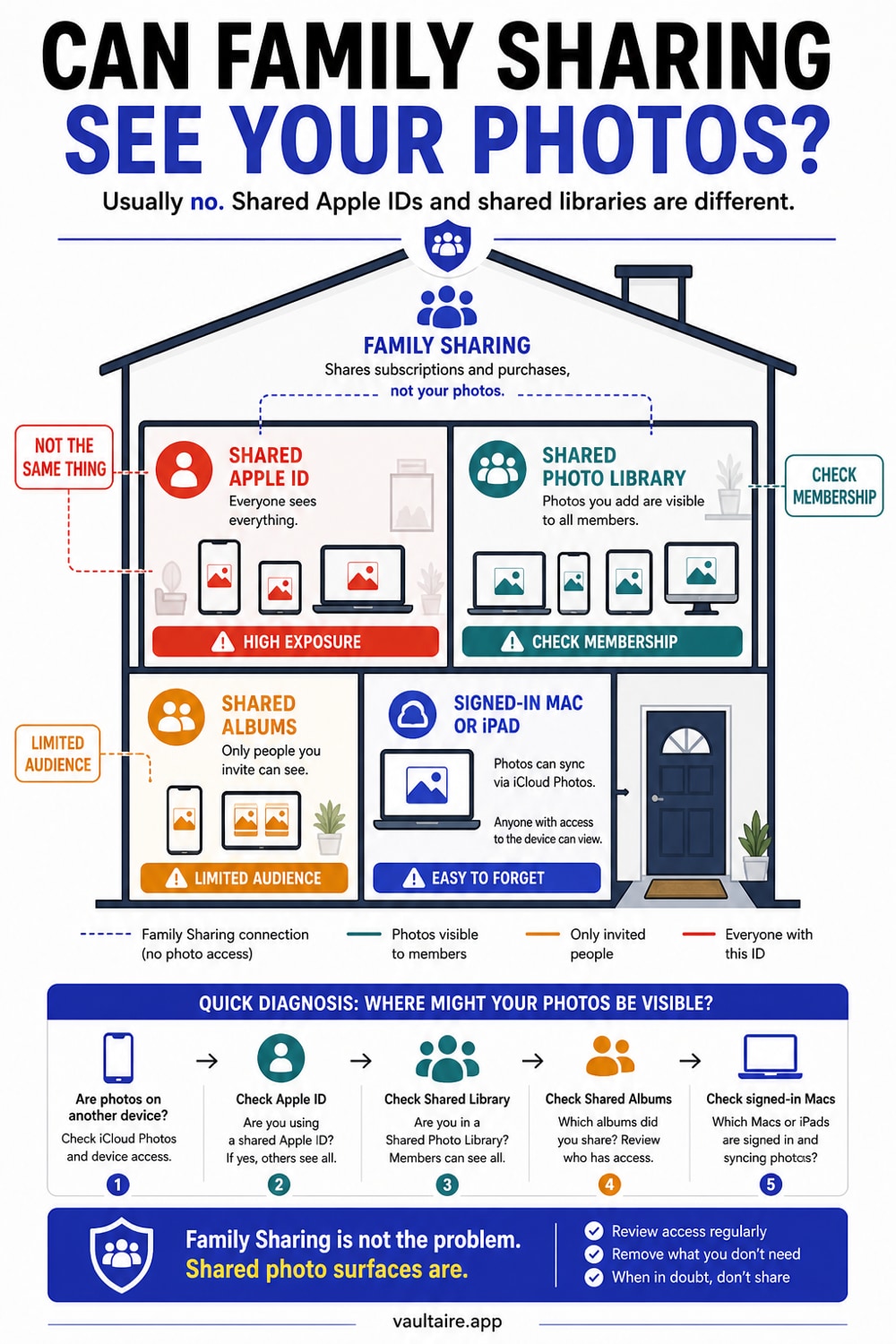
No, Family Sharing alone cannot see your iPhone photos. Sharing purchases, subscriptions, location, or an iCloud storage plan does not give family members access to your camera roll. Photos usually appear on another family device because both devices use the same Apple ID, because iCloud Shared Photo Library is enabled, because items were added to a Shared Album, or because a Mac or iPad is still signed into your Apple Account.
Family Sharing by itself does not let family members see your whole iPhone photo library. Photos can become visible through a shared Apple ID, iCloud Shared Photo Library, Shared Albums, shared devices, or someone who can sign in to your Apple Account.
Check the setup first
Do not delete photos in a panic. Work out which sharing feature is involved.
| Setup | Can others see your whole photo library? | What to check |
|---|---|---|
| Family Sharing only | No | Shared subscriptions and iCloud storage plan |
| Same Apple ID on two devices | Yes | Settings > Apple Account > Devices |
| Shared Album | Only photos added to that album | Photos > Shared Albums |
| Shared Photo Library | Shared library items, sometimes automatic camera sharing | Settings > Photos > Shared Library |
| Logged-in Mac or iPad | Yes, if iCloud Photos is on | Apple Account devices |
Family Sharing can share purchases, subscriptions, location, and iCloud storage. It does not automatically share your private camera roll.
Shared Apple IDs expose photos
If two people use the same Apple ID, iCloud Photos can sync the same library to both devices. This is common in households that set up phones years ago and never separated accounts.
Check Settings > [your name] and look at the Apple Account email. Then scroll to the device list. If you see phones, iPads, or Macs that other people use, treat your synced data as shared.
The fix is account separation, not manual photo deletion. Back up what each person needs, sign out shared devices, and move each person to their own Apple Account.
Shared Photo Library is separate from Family Sharing
iCloud Shared Photo Library lets multiple people contribute to one shared library. It can also share photos from Camera based on settings and proximity. That feature is useful for families, but it is easy to misunderstand.
Check Settings > Photos > Shared Library. If you are in a shared library, review what is shared and whether Camera sharing is enabled. Move private items back to your personal library or out of Photos before changing the rest of the setup.
Shared Albums are limited but still worth checking
Shared Albums expose only items you add to those albums. They do not expose the whole library. Open Photos, go to Albums, and look for Shared Albums.
Remove anything that does not belong there. If an album itself is the problem, leave the album or delete it if you own it.
Signed-in Macs and iPads matter
A Mac or iPad signed into your Apple Account can sync Photos, Messages, Notes, Files, and browser data. If someone else uses that device, your photo privacy depends on that device's lock screen and account separation.
Open the Apple Account device list and remove devices you do not control. Then change your Apple Account password if you suspect someone else knows it.
Move private files out of Photos
If a photo should not appear in household photo streams, shared libraries, app pickers, or Memories, keep it out of Photos. Import it into a photo vault app tested for iPhone, confirm the file opens there, then remove the loose copy from Photos and Recently Deleted.
This does not replace Apple account cleanup. It reduces the damage if one photo app setting changes later.
Quick diagnosis when photos show up somewhere unexpected
Start with the device, not the photo. Open the device list for your Apple Account and write down every iPhone, iPad, and Mac that can sync your data. If a device belongs to someone else or sits in a shared space, fix that before you spend time moving individual photos.
Then check the sharing feature. Shared Albums expose only the items added to that album. Shared Photo Library can expose a broader set of items, depending on how it was set up. A shared Apple ID is the broadest problem because it can merge far more than photos.
If you need to preserve family photos while separating private files, move slowly. Export what belongs in the family archive, move private files out of Photos, and confirm each person has their own Apple Account. Deleting first creates more risk than it solves.
Household privacy checklist
Review this setup after a new phone, a child's device setup, a repair, or a hand-me-down device. Those are the moments when old account choices come back.
- Each person uses a separate Apple Account.
- Shared Photo Library has only the intended members.
- Camera sharing into the shared library is off unless you want it.
- Shared Albums contain only photos you meant to share.
- Old Macs and iPads are removed from your account.
Related reading:
- Cloud photo storage privacy
- Hidden photos on iPhone
- Partner knows your iPhone passcode
- Encrypted iCloud backup
- iPhone photo storage
Sources
- Apple Support: How to use iCloud Shared Photo Library
- Apple iCloud User Guide: Shared Albums in iCloud
FAQ
Can Family Sharing see my photos?
No. Family Sharing alone cannot see your iPhone photos. Shared iCloud storage, purchases, subscriptions, and location sharing do not open your camera roll. If photos show up somewhere else, check for a shared Apple ID, iCloud Shared Photo Library, Shared Albums, and signed-in household devices.
Can people in Family Sharing see my Hidden Album?
No. Family Sharing alone does not expose your Hidden Album. A shared Apple ID, shared device, or Shared Photo Library can create exposure.
Can shared iCloud storage expose my photos?
No. Sharing an iCloud storage plan does not give family members access to each other's files or photos.
What should I check first if photos appear on another device?
Check whether both devices use the same Apple ID. That is the most common cause when photos appear across household devices.