Private Photo App for iPhone: The Most Private Pick (2026)
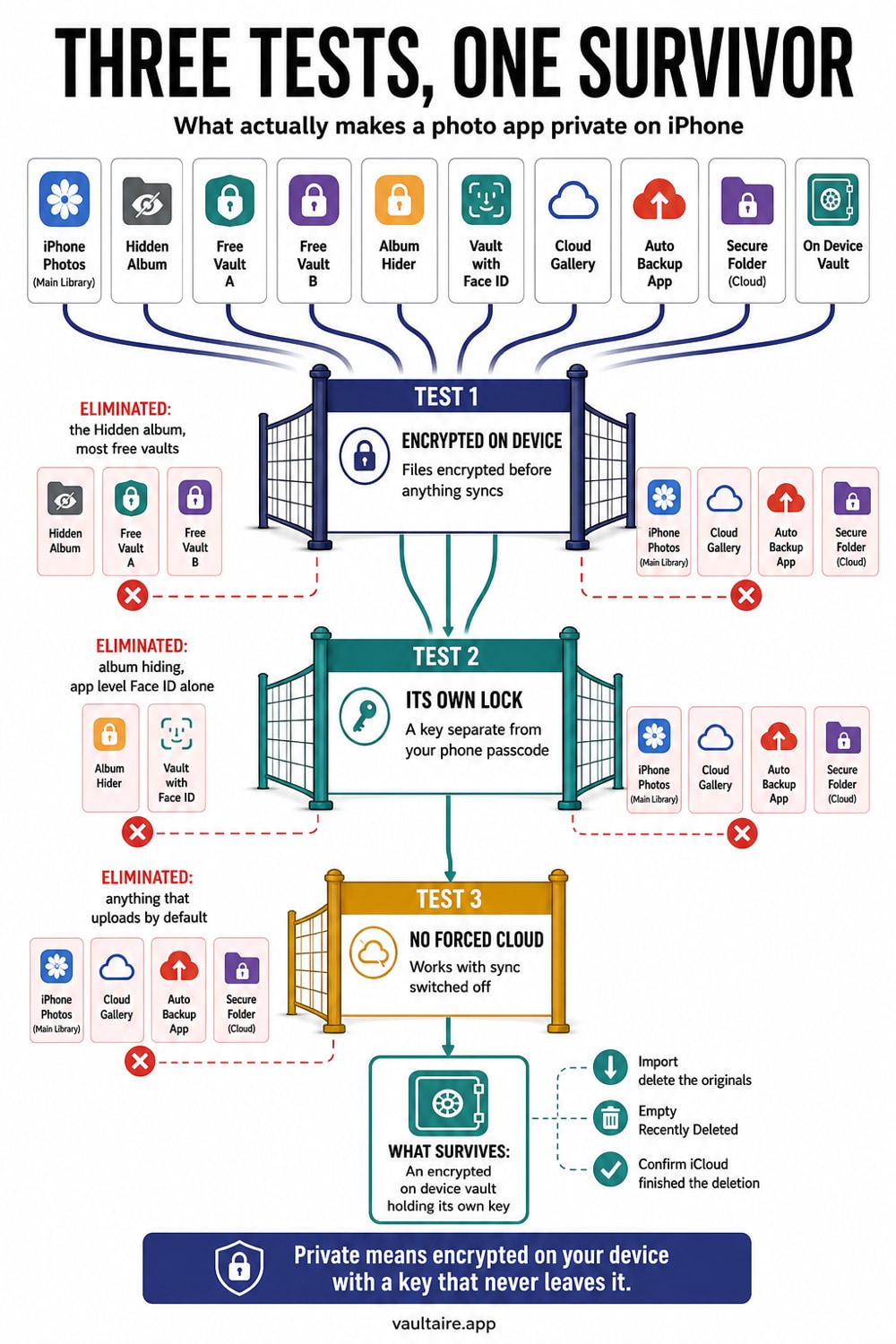
A private photo app on iPhone should encrypt pictures on the device, work without an identity account, and never send anything readable to the cloud. By that standard, an on-device encrypted vault like Vaultaire is a stronger choice than the built-in Hidden album, which stays inside the Photos access model. A separate drawn pattern and authenticated encryption add another boundary when someone is holding your unlocked phone, although a compromised device can still capture input or open-vault data.
The most private option is an app that encrypts photos on your iPhone and uses a credential separate from your phone lock. Vaultaire uses its own drawn pattern and requires no identity account. Local vault use works offline. App analytics and crash diagnostics are enabled by default and can be turned off with “Share errors anonymously” in Settings. Encrypted iCloud backup is on by default and can be turned off; backup, sync, and sharing use client-side encrypted CloudKit records. Apple’s Hidden album is convenient, but it remains inside the Photos access model and does not provide a separate Vaultaire-style lock.
The Verdict: What To Use
For most people the right answer is a dedicated, on-device photo vault rather than the Photos app alone. Look for three things: encryption that happens on the iPhone itself, a lock separate from the phone passcode, and no provider-held plaintext content key. Vaultaire protects file contents under a random master key and keeps Wraxle out of the key path. Copied, locked app storage contains ciphertext, while recovery records, device state, credentials, system backups, and the running app remain part of the threat model.
Apple's built-in tools are fine for low-stakes privacy. The Hidden album moves photos out of your main grid and, on recent iOS versions, can require Face ID to open. That stops a casual glance, but the images are still stored in plain form and still ride along in your iCloud Photos backup. If the threat you care about is a partner, a repair tech, or a thief with your unlocked phone, move the sensitive photos into an encrypted vault and delete the originals from Photos.
How The Options Compare
Start with what each option actually protects. The Hidden album hides photos from the main library and can lock the folder behind Face ID, but the photos stay decrypted and synced to iCloud. A Notes trick, where you paste photos into a locked note, adds a password, yet the images sit in the Notes database and sync across your devices. Free photo vault apps vary widely: some genuinely encrypt, while many only set a passcode on a normal photo folder and quietly back the photos up to their own servers.
An on-device encrypted vault adds a separate storage tier. Vaultaire protects each file under a random AES-256-GCM master key and uses a drawn pattern to derive the vault key that unwraps it. It requires no identity account, and local vault use works offline. App analytics and crash diagnostics are enabled by default and can be turned off with “Share errors anonymously” in Settings. Encrypted iCloud backup, on by default, plus sync and sharing send client-side encrypted CloudKit records, which leaves ciphertext and service metadata with Apple rather than readable vault files or plaintext keys.
Tradeoffs To Weigh
The honest tradeoff with an encrypted vault is recovery. Vaultaire has no provider-held reset key. Its nine-word recovery phrase, or a custom phrase of at least six words, derives a recovery key for an encrypted envelope, and new-device restore also requires the matching encrypted CloudKit backup records. Keep the phrase protected, verify backup before relying on it, and use deliberate export when you want a separate readable copy.
Convenience is the other tradeoff. Photos in a vault do not appear in your camera roll, your Memories, or your shared albums, which is the point but can feel like extra steps. The workflow that works well is simple: shoot or save normally, move the private shots into the vault in a batch, then delete them from Photos and empty Recently Deleted. After that, the vault copy opens through its drawn pattern rather than a quick Face ID tap.
What To Do Next
If you want the short path, install an on-device encrypted vault, set a drawn pattern that is different from your phone lock, and import the photos you care about. Then remove the originals from your library, which Vaultaire offers to do after the import, and clear Recently Deleted so no plaintext Photos copy is left behind. This adds a separate encrypted boundary when someone is scrolling through your unlocked phone, subject to the limits of the device and app while the vault is open.
Vaultaire is built for exactly this: encryption on the device, a separate drawn pattern, no identity account, and no forced cloud sync. It is free to start, so you can test import, lock, unlock, export, and recovery before deciding how much to keep there. For wider context, read the related guides below on vault apps, hiding photos, and what to clear before selling your iPhone.
Related reading:
- What to clear before selling or trading your iPhone
- The best photo vault apps for iPhone, compared
- How the Hidden album works on iPhone
- How to hide photos on iPhone
- How to keep private adult photos on iPhone out of Photos and iCloud
Sources
Frequently Asked Questions
Which is the best app for private photos hide in iPhone?
The best choice encrypts photos on the iPhone and uses a credential separate from the phone lock. Vaultaire uses a drawn pattern and requires no identity account. Local vault use works offline. App analytics and crash diagnostics are enabled by default and can be turned off with “Share errors anonymously” in Settings. Encrypted iCloud backup is on by default and can be turned off; backup, sync, and sharing use client-side encrypted CloudKit records. Apple’s Hidden album is easier but remains inside the Photos access model.
Is there a way to private photos on iPhone?
Yes. You can hide photos in the built-in Hidden album, which can be locked with Face ID, or move them into an encrypted vault app for stronger protection. For anything sensitive, an on-device vault is safer because the files are encrypted and kept out of your iCloud Photos backup.
What is the best app for private photos?
Look for on-device encryption, a lock that is separate from your phone passcode, and no forced cloud upload. Vaultaire meets all three and is free to start. Many free vault apps only set a passcode on a normal folder and still back your photos up to their servers, so check before you trust one.
Can I hide all pictures of a person on my iPhone?
You can hide individual photos to the Hidden album, but iOS does not hide every picture of a specific person automatically. The reliable way is to select that person's photos, move them into an encrypted vault, then delete the originals from Photos and Recently Deleted. After that, none of those images show up in your library or search.