How to Keep Screenshots Private on iPhone
Keep bank screenshots, chats, tickets, receipts, and private notes out of your camera roll with a simple iPhone screenshot privacy workflow.
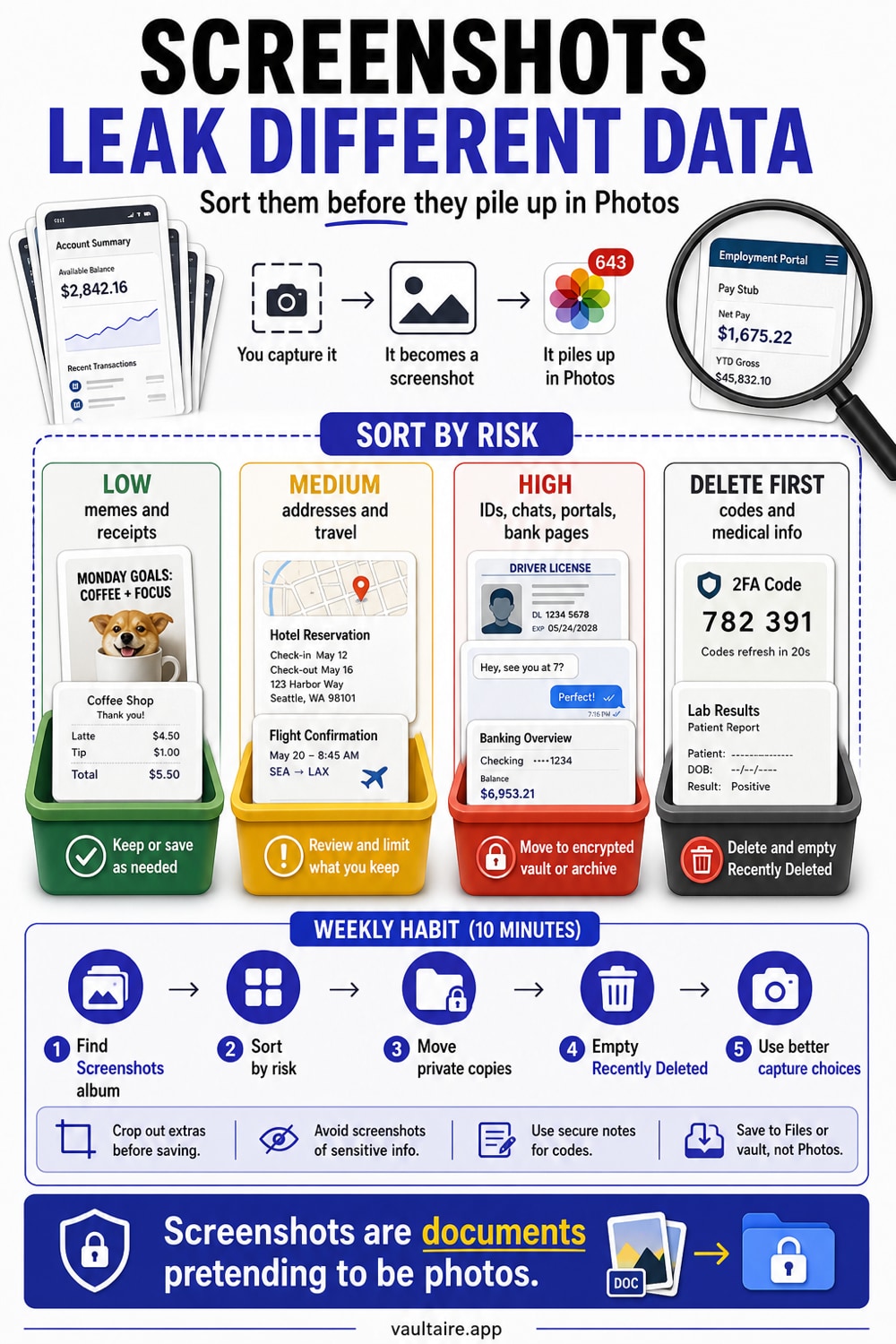
To keep screenshots private on iPhone, open Photos > Albums > Screenshots, move sensitive screenshots into encrypted storage, then delete loose copies from Photos and Recently Deleted. Start with banking, chats, tickets, receipts, IDs, work files, and recovery codes.
Screenshots leak different information than photos
Screenshots often capture context you did not mean to save: names, balances, addresses, barcodes, order numbers, medical portals, work chats, and recovery codes. They also land in Photos, where app access and iCloud sync can treat them like normal pictures.
| Screenshot type | Risk | Best action |
|---|---|---|
| Banking or payment | Account details, balances | Move to encrypted vault or delete |
| Chats | Private names and context | Store only if needed |
| Tickets and passes | Barcodes, travel plans | Delete after use |
| Receipts | Address, purchase history | Store with tax or warranty docs |
| Recovery codes | Account takeover | Do not leave in Photos |
Find all screenshots on iPhone
Open Photos > Albums > Media Types > Screenshots. This album gives you a focused cleanup view, which is easier than searching Recents.
Use the search tab too. Search for terms like bank, code, receipt, ticket, passport, tax, insurance, medical, work, or the names of apps where you take sensitive screenshots.
Sort screenshots by risk
Use three buckets:
- Delete now: one-time codes, expired tickets, duplicate receipts, old shipping screenshots.
- Archive securely: tax receipts, warranty proof, legal records, work evidence.
- Keep in Photos: harmless UI screenshots and images you use for reference.
The goal is not a perfect archive. The goal is to remove private clutter from the camera roll.
Move private screenshots out of Photos
Import the screenshot into Vaultaire or another encrypted store. Open the imported copy to confirm it works. Then delete the original from Photos.
For tax, legal, or work records, use a clear folder name before you delete the loose copy. You should be able to find the file later without searching your entire phone.
Delete loose copies and Recently Deleted
Deleting from Photos sends screenshots to Recently Deleted. If you want the loose copy gone from Photos, open Photos > Albums > Recently Deleted, unlock it, and delete the screenshots there too.
Do this only after you confirm the secure copy exists. Recently Deleted is a recovery buffer, not a privacy archive.
Build a weekly screenshot habit
Once a week, open the Screenshots album and delete or move anything sensitive. It takes two minutes when you do it often. It takes an hour after a year of banking pages, travel passes, and chat receipts pile up.
Use better capture choices
Before you take a screenshot, ask whether you need a screenshot at all. A PDF download, exported receipt, password manager note, or secure document scan may age better and leak less context. Screenshots are convenient, but they often include status bars, contact names, balances, browser tabs, or push notifications.
If you need the screenshot, crop it right away. Remove the parts that do not support the reason you saved it. Then move it into the right storage location before it becomes another item in Recents.
Images you saved from a web page instead of capturing are a separate problem. Most sites now serve WebP, and a saved WebP often will not open in the apps you want to hand it to, which tempts you into re-screenshotting it and pulling the surrounding page back into frame. Convert the file instead: the free WebP to PNG converter runs in the browser, so the image never leaves your device on the way to a format that opens everywhere.
What to delete first
Start with screenshots that become dangerous after they expire: one-time codes, QR codes, boarding passes, delivery labels, bank balances, recovery codes, medical portals, and work chats. These files rarely need to stay in Photos.
Keep screenshots only when they have a job. If the job is done, delete them. If the job is evidence, tax backup, warranty proof, or legal reference, archive them outside the camera roll with a useful filename.
Related reading:
- Hidden photos on iPhone
- Store tax documents on iPhone
- Store sensitive documents on iPhone
- Which apps can see your iPhone photos?
- Pattern encryption
- Secure Camera
- Hide photos from social media apps
Sources
FAQ
Can I lock the Screenshots album on iPhone?
No. iOS does not provide a separate lock for the Screenshots album. Move sensitive screenshots into encrypted storage and delete the loose copies.
Are screenshots included in iCloud Photos?
Yes, if iCloud Photos is on. Screenshots sync like other images unless you remove them.
Should I screenshot recovery codes?
Avoid it. Recovery codes should go into a password manager, encrypted vault, or printed offline backup depending on the account risk.