Which iPhone Apps Can See Your Photos?
Check which iPhone apps can see your photos, switch risky apps to Selected Photos, and decide when Full Access is worth it.
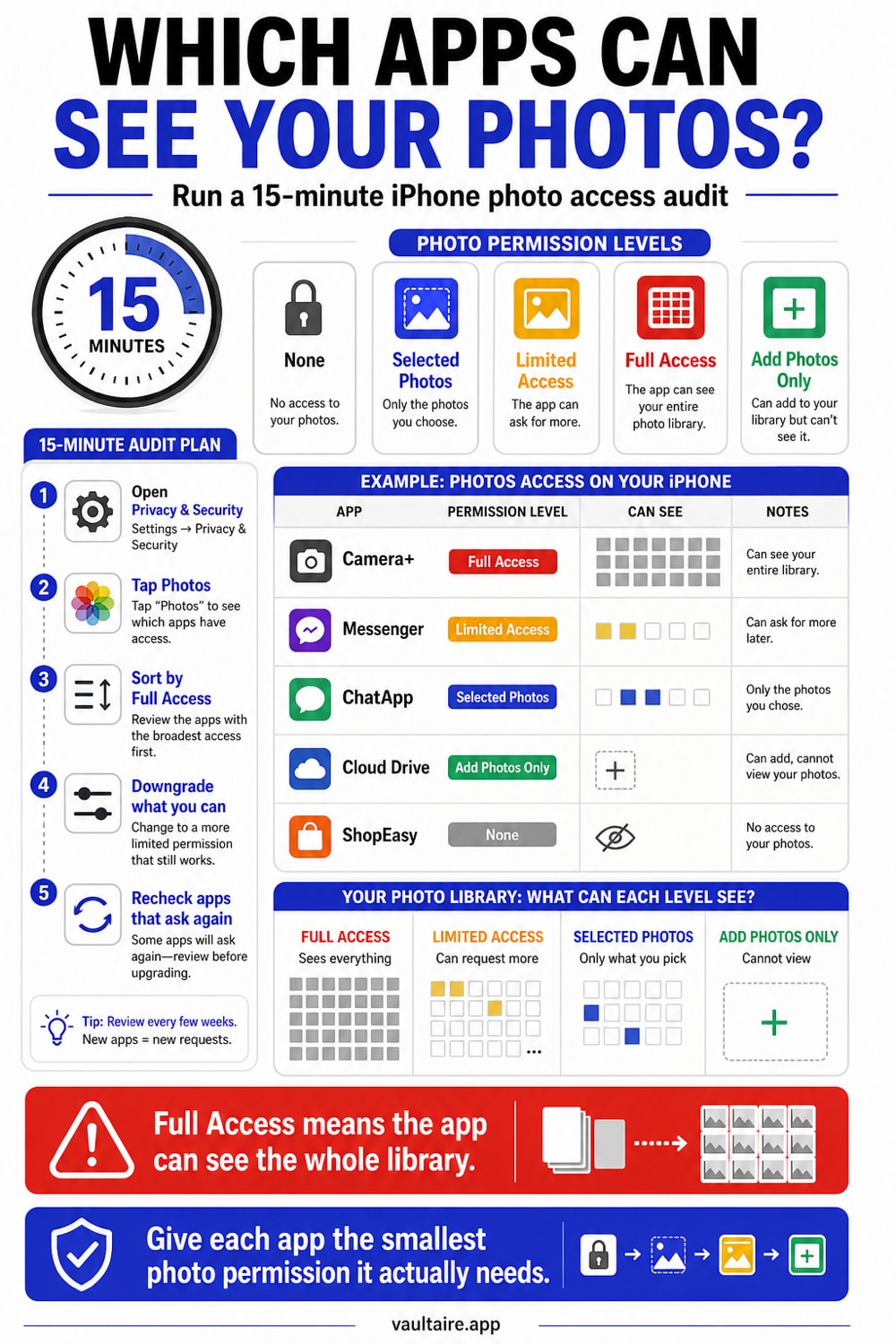
Your iPhone shows photo access in Settings > Privacy & Security > Photos. Set most apps to Selected Photos or None. Give Full Access only to apps that truly need your whole library, such as backup tools, full gallery managers, or migration apps.
What each Photos permission means
Apple gives apps several ways to work with your photo library. The names sound similar, but the privacy difference is large.
| Permission | App can read existing photos? | App can add new photos? | Best for |
|---|---|---|---|
| None | No | No | Apps that do not need photos |
| Add Photos Only | No | Yes | Scanner or camera apps that save output |
| Selected Photos | Only items you choose | Usually no | Social posts, messaging, upload forms |
| Full Access | Yes, the whole library | Yes | Backup, gallery managers, migration tools |
If an app only needs one picture for one post, it does not need Full Access. If an app backs up your entire library, Selected Photos will break the job.
How to check photo access on iPhone
- Open Settings.
- Tap Privacy & Security.
- Tap Photos.
- Review every app in the list.
- Tap an app and choose None, Selected Photos, Add Photos Only, or Full Access.
Start with social, shopping, dating, editing, scanner, and utility apps. These apps often ask for broad access because it makes uploads easier. That does not mean they need it.
Which apps should have Full Access?
Full Access makes sense when the app cannot do its job without scanning or managing your whole library.
Photo backup apps need Full Access because they compare files and upload new photos in the background. Gallery cleanup apps need it if they find duplicates. Migration apps need it when you move a library from one service to another.
Most other apps should use Selected Photos. A marketplace app needs the couch photo you chose, not old passport scans. A messaging app needs the screenshot you send, not every image in Recents.
Fifteen-minute photo access audit
Use this order if you want to clean up fast.
- Set shopping, food, finance, travel, and ticket apps to None unless you upload images there.
- Set social apps to Selected Photos.
- Set messaging apps to Selected Photos or use the system photo picker.
- Give photo editors Selected Photos unless you use library-wide editing.
- Give backup apps Full Access only if you trust the service and want full backup.
- Remove apps you no longer use.
Open the apps you changed once after the audit. If one breaks, decide whether the broken feature matters more than library-wide access.
What if an app keeps asking for Full Access?
Some apps handle limited access badly. They may show a warning every time, hide older imports, or refuse to continue. That is an app design choice.
You have three options: keep Selected Photos and tolerate the extra tap, give Full Access because the app is worth it, or replace the app. For high-risk libraries, replacing the app is often cleaner than teaching yourself to ignore permission prompts.
How Vaultaire changes the exposure surface
Apps with Photos permission can only see files that remain in the Photos library. If you import private files into Vaultaire and remove the loose copies from Photos and Recently Deleted, those files no longer sit beside your normal camera roll.
Vaultaire does not fix a bad Photos permission by itself. It gives you a separate place for files that should not be available to every app that asks for photo access.
Common permission mistakes
The risky moment usually happens when an app asks for access while you are trying to finish another task. You want to post a listing, upload a receipt, or send a profile photo, so you tap the fastest answer. That one tap can leave the app with access long after the upload ends.
Treat photo access like location access. A weather app may need your city, but it does not need permanent precise location. A marketplace app may need the sofa photo you selected, but it does not need your passport scans, medical screenshots, or old camera roll.
If you are unsure, choose Selected Photos first. You can add more later. Moving from narrow access to broad access is easy. Moving back after an app has already indexed your library is a weaker privacy move.
What to check after changing access
Open the app after you reduce its permission. Try the exact thing you use it for: upload one photo, save one scan, edit one image, or send one attachment. If the feature works, keep the tighter setting.
If the app refuses to work without Full Access, decide whether you trust the app with the whole library. For a bank, medical portal, dating app, marketplace, or work chat, that answer may be no. Use the website, the system picker, or a different app if that keeps your photo library smaller and cleaner.
Related reading:
- iPhone privacy settings you should change
- Hidden photos on iPhone
- Cloud photo storage privacy
- Photo vault app guide
- Vaultaire security architecture
Sources
- Apple Support: Control access to information in apps on iPhone
- Apple Support: See photo and video information on iPhone
FAQ
Can an iPhone app see all my photos if I choose Selected Photos?
No. With Selected Photos, the app can use only the photos you choose for that app. It can ask you to add more later.
Why does an app ask for Full Access when I only upload one photo?
Full Access makes the app easier to build because the app can display its own gallery picker. The safer choice is Selected Photos or Apple's system photo picker.
Does deleting an app remove its photo access?
Yes. Deleting the app removes its local access. If you reinstall it, iOS will ask for permission again.
Can Photos permission expose hidden photos?
If an app has Full Access, treat your whole Photos library as available to that app. Move files that need stronger separation into a dedicated encrypted vault and remove the originals from Photos.